How to use a digital planner on an iPad or Android tablet
A digital planner is a PDF with clickable tabs that you write on with a stylus. Here is how to set one up and actually keep using it.
The short answer: download the planner PDF, import it into a note app that keeps links (GoodNotes, Notability or Noteshelf on iPad; Samsung Notes or Xodo on Android), tap the tabs to jump between pages, and write with your pen. Plan each week on Sunday, each day the night before.
What a digital planner is
It is a PDF made to look like a paper planner, with hundreds of pages: a year overview, months, weeks and a page for each day. The tabs and dates are links, so tapping "March" jumps to March. You write on it in a note app, and you can erase, move and copy anything.
What you need
- A tablet: an iPad, or an Android tablet such as a Samsung Galaxy Tab.
- A stylus (an Apple Pencil, an S Pen, or any capacitive stylus). A finger works but is less neat.
- A note app that opens PDFs and keeps their links. You don't need an account or a subscription for the basics.
Importing the planner
- Download and unzip the file on the tablet, or on a computer and send it over.
- GoodNotes: tap + New, then Import, and choose the PDF.
- Notability or Noteshelf: tap Import (or the + menu) and choose the PDF.
- Samsung Notes: open the app, tap the PDF import button, and choose the file. Xodo: open the PDF in the app.
- Give it a name, and you're ready.
Tapping links vs writing
This is the one thing that confuses most people at first. In GoodNotes, links work when the pen is off (read-only mode); turn the pen on to write. Other apps let you tap a link with a finger while you write with the stylus. If a tab doesn't jump, you are probably still in writing mode.
A simple routine that sticks
- Once a month: fill in the month calendar with fixed dates, and pick two or three priorities.
- Every Sunday: 10 minutes on the week page: appointments, the big tasks, habits to track.
- Every evening: 3 minutes on tomorrow's day page: top three tasks and the schedule.
- End of the month: the review page: what went well, what to drop.
Don't try to fill every page. A planner that's used three minutes a day beats a beautiful one used for two weeks.
Tips
- Use the lasso tool to move a task you didn't finish to tomorrow, instead of rewriting it.
- Stickers and colors are fun, but one highlight color for "must do" is all the system needs.
- Back up: turn on the app's cloud backup, or export the PDF once a month.
- Want reminders? Planners with Google Calendar buttons open a new event with that date filled in.
Choosing a planner
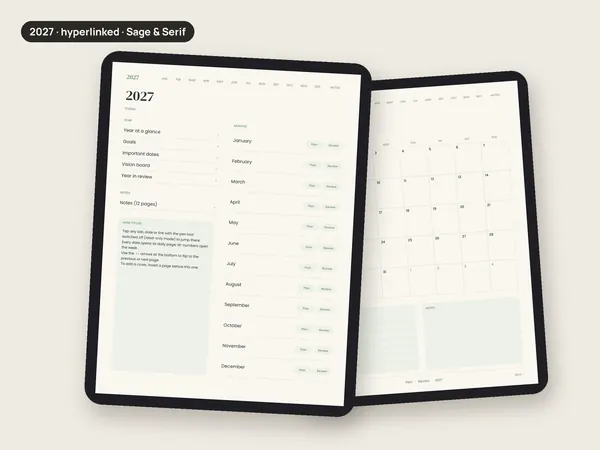
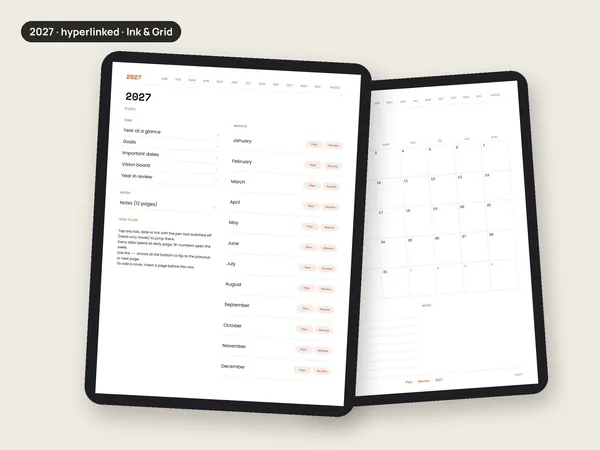
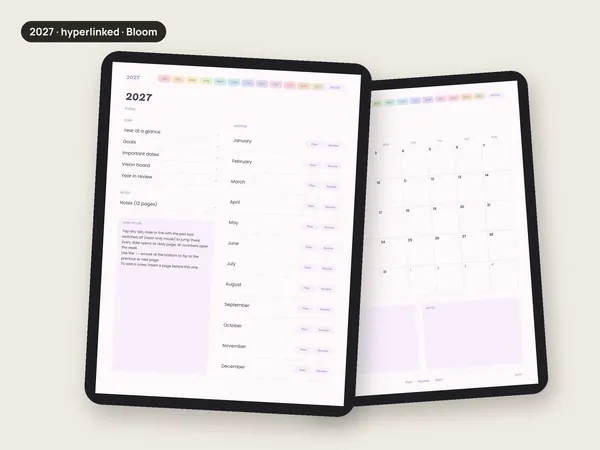
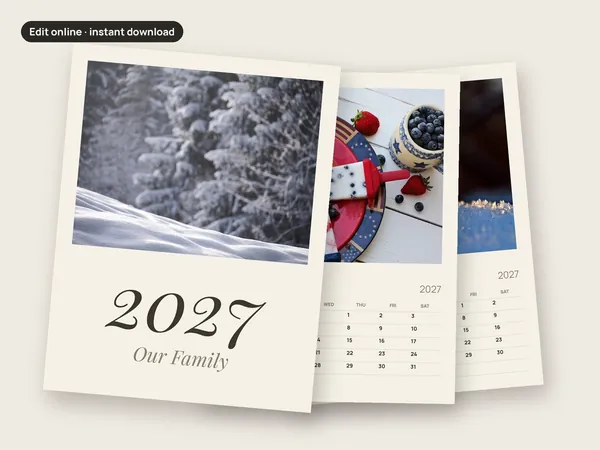
Our 2027 planners have a page for every day of the year, monthly and weekly reviews and a habit tracker, with Monday and Sunday starts in the same download. They differ in look: Sage & Serif (calm green), Ink & Grid (black and white) and Bloom (floral). Prefer paper on the wall? Make a photo calendar.